Quick answer
The photo decides more of the result than the prompt does. Before you spend credits on a baby dance video, check that you have permission to use the photo, that the face and hands are visible, that the body is not cropped, that the background is simple, and that the child is the only subject. Then generate one 5-second draft, inspect the last two seconds, and only continue if the face holds.
This checklist is written for the photo to dance video workflow in Baby Dance AI, but the same checks apply to any hosted image-to-video model.
1. Consent and rights come first
A photo of a child is personal data. Before uploading it, confirm that you are the parent or guardian, or that you have explicit permission from the person who is. If the photo came from a family group chat, a photographer, or a social post, permission to view it is not permission to animate it.
Keep the circle small. A generated clip can be copied, re-uploaded, and indexed. Decide who should see it before you generate, not after. For a baby shower or a surprise, get the parents' consent before you share the clip with guests.
The site's privacy policy explains how uploaded media and generation jobs are handled. Read it if you are uploading a photo of someone else's child.
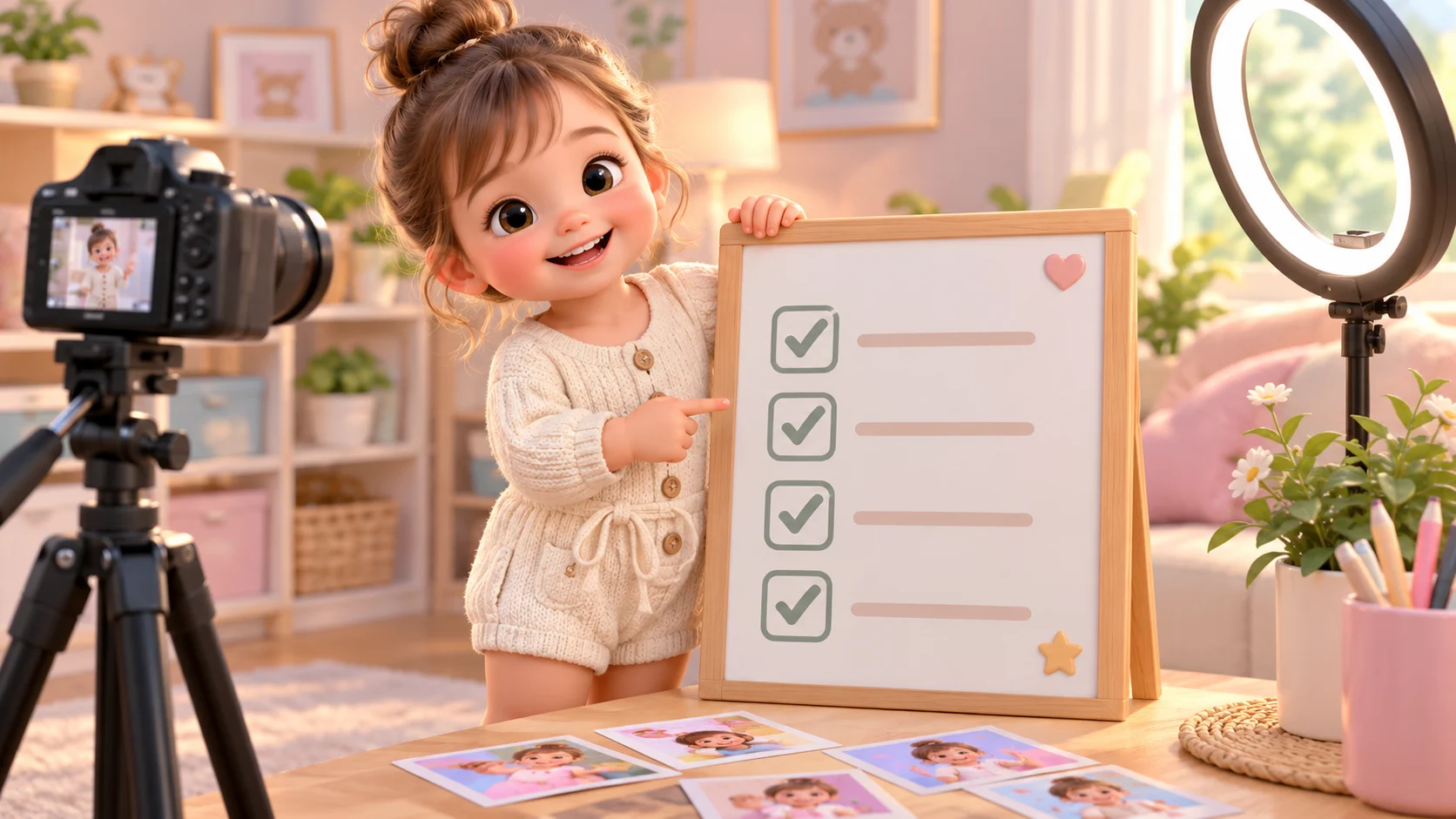
2. The 12-point photo checklist
| # | Check | Good sign | Fix before generating |
|---|---|---|---|
| 1 | Permission | You are the parent or have explicit consent | Use a different photo or ask first |
| 2 | Face | Both eyes, nose, and mouth are visible | Avoid profiles, masks, and deep shadows |
| 3 | Hands | Fingers are separated and visible | Choose a frame without folded or hidden hands |
| 4 | Feet | Both feet are in frame | Use a full-body photo if the dance needs footwork |
| 5 | Body crop | Shoulders, torso, and legs are present | Do not crop at the waist or knees |
| 6 | Background | Plain wall, studio sweep, or soft room | Avoid crowds, mirrors, and busy patterns |
| 7 | Clothing | Simple silhouette, visible fabric | Avoid logos, tiny prints, and face-covering hoods |
| 8 | Lighting | Soft, even light on the face | Avoid hard side light and backlight |
| 9 | Resolution | The face stays sharp when zoomed | Use the original file, not a chat thumbnail |
| 10 | Expression | Neutral or slightly smiling | Avoid mid-blink and extreme expressions |
| 11 | Head angle | Front or a slight three-quarter turn | Avoid looking down or far to the side |
| 12 | People | One child in the frame | Use a separate photo per child |
Twelve checks sound excessive until you watch a generation fail. Most failures trace back to one of these inputs, not to the wording of the prompt.
3. Why the face and hands matter most
A video model has to keep the same face from the first frame to the last. When the source photo shows only one eye, a strong shadow, or a hand over the cheek, the model has less information to work with. The result is often a face that drifts in the final second, which is exactly the part viewers replay.
Hands are the second weak point. Fingers are small, articulated, and easy to merge. A photo with folded hands or a hand behind the back gives the model no clear reference. For a dance clip, choose a source where the hands are relaxed and separate, even if they are not the main subject.
Feet matter when the dance includes steps, hops, or a turn. If the source cuts off at the knees, the model has to invent the lower body. That is where sliding feet and disappearing shoes come from.
4. Backgrounds and clothing
A plain background is not a stylistic preference; it is a control. Busy rooms, mirrors, other people, and strong patterns give the model more to animate and more chances to warp. A studio sweep, a plain wall, or a softly blurred room is easier to hold stable.
Clothing should read at thumbnail size. A simple romper, dress, or linen set gives a clear silhouette. Tiny prints, large logos, and reflective fabrics can flicker or smear. Avoid hoods and hats that cover the eyes, and avoid costumes that make the pose unstable. The same safety rule applies to a real child and to a generated clip: the face should stay visible.
5. Resolution and file quality
Use the original photo, not a screenshot of a chat bubble. A compressed thumbnail removes the detail the model needs around the eyes and mouth. A sharp 1,000-pixel image is usually more useful than a soft 4,000-pixel image.
Do not upscale a blurry photo and expect the model to recover detail. Upscaling adds pixels, not information. If the only available photo is soft, pick a different frame or take a new photo with better light.
6. Test with a 5-second draft
A standard 5-second dance clip is 300 credits without audio; 10 seconds is 600 credits without audio. The studio shows the exact cost before you submit. Start with the 5-second version even if the final clip will be longer. A short draft is cheaper to inspect and easier to hold together.
The workflow:
- Open the dance studio.
- Choose image to video.
- Upload the photo you checked against the list above.
- Write one dance style, one setting, and one camera framing.
- Review the displayed cost and generate a 5-second draft.
- Watch the full clip once, then watch the last two seconds again.
- Only generate a longer or more detailed version if the face and hands hold.
If the first draft fails, change one input at a time. Swapping the photo, the prompt, and the mode at the same time makes it impossible to learn which change helped.
7. A prompt that pairs with a clear photo
The prompt should describe movement, not re-describe the child. The photo already supplies the face, clothing, and setting. A practical skeleton is:
The child performs one gentle dance move in a stable medium shot. Keep the face, body proportions, and clothing consistent from the first frame to the last. One subject only. Natural hands, stable feet, realistic lighting. No text, no logos, no watermark, no scene cuts.
Add one style and one setting, not five. "A slow sway in a pastel studio with soft window light" is easier to follow than a list of camera moves, costume changes, and lighting effects. The prompt builder can assemble the parts and prefill the studio.
8. What to inspect after generation
Watch the clip at normal speed first. Then pause on the last frame and check:
- Does the face have the same features as the first frame?
- Are there five fingers on each visible hand?
- Do the feet stay in contact with the floor?
- Do the background edges stay straight?
- Is there any letter-like artifact on the clothing?
- Does the clip end on a frame you would use as a cover?
If two or more checks fail, regenerate rather than trying to edit the clip. Post-production cannot rebuild a face that was never stable. The AI dance video editor page has a browser inspector for duration, resolution, size, and container, plus a checklist for the last mile.
9. After the draft: music, disclosure, and sharing
The studio generates video, not a licensed music library. Add music inside TikTok, Reels, or Shorts, where the platform handles licensing for posts on that platform. Do not bake a commercial track into a file you plan to sell or distribute outside the platform.
Disclose AI-generated content when the platform asks for it, and when the context could mislead a viewer. A family group chat may not need a label; a public post that implies a real dance performance does. Keep the source photo private unless you have permission to share it.
Common questions
What is the best photo for an AI baby dance video?
A sharp, front-facing photo with the whole body in frame, visible hands, a simple background, and soft even light. Permission to use the photo comes before every technical check.
Can I use a photo from a photographer?
Only if the photographer and the parent or guardian allow that specific use. A photographer's portfolio license usually does not cover AI animation or social redistribution.
Why does the face change at the end of the clip?
The model has less information to work with when the face is small, angled, shadowed, or compressed. A clearer source photo and a shorter, simpler movement usually help more than a longer prompt.
Should I generate 5 or 10 seconds?
Start with 5 seconds. A standard 5-second clip is 300 credits without audio; 10 seconds is 600 credits. A short draft is cheaper to inspect and more likely to hold the face.
Can I make a clip with two children?
The studio is built around one subject per photo. For two children, generate separate clips or use a photo where both faces are clearly visible and keep the prompt simple. Results with multiple people are less predictable.
Next step
Run the 12 checks on one photo, open the dance studio, and generate a 5-second draft. If you are still choosing a mode, read the AI dance video generator guide. If you already have a clip and need to convert it, use the video converter.
![50+ Best AI Baby Dance Video Prompts That Actually Work [2026 Guide]](/imgs/blog/baby-dance-ai-prompts.webp)
![AI Baby Dance Video Generator: How to Make Your Baby Dance with AI [2026]](/imgs/blog/how-to-make-baby-dance-ai-video.webp)